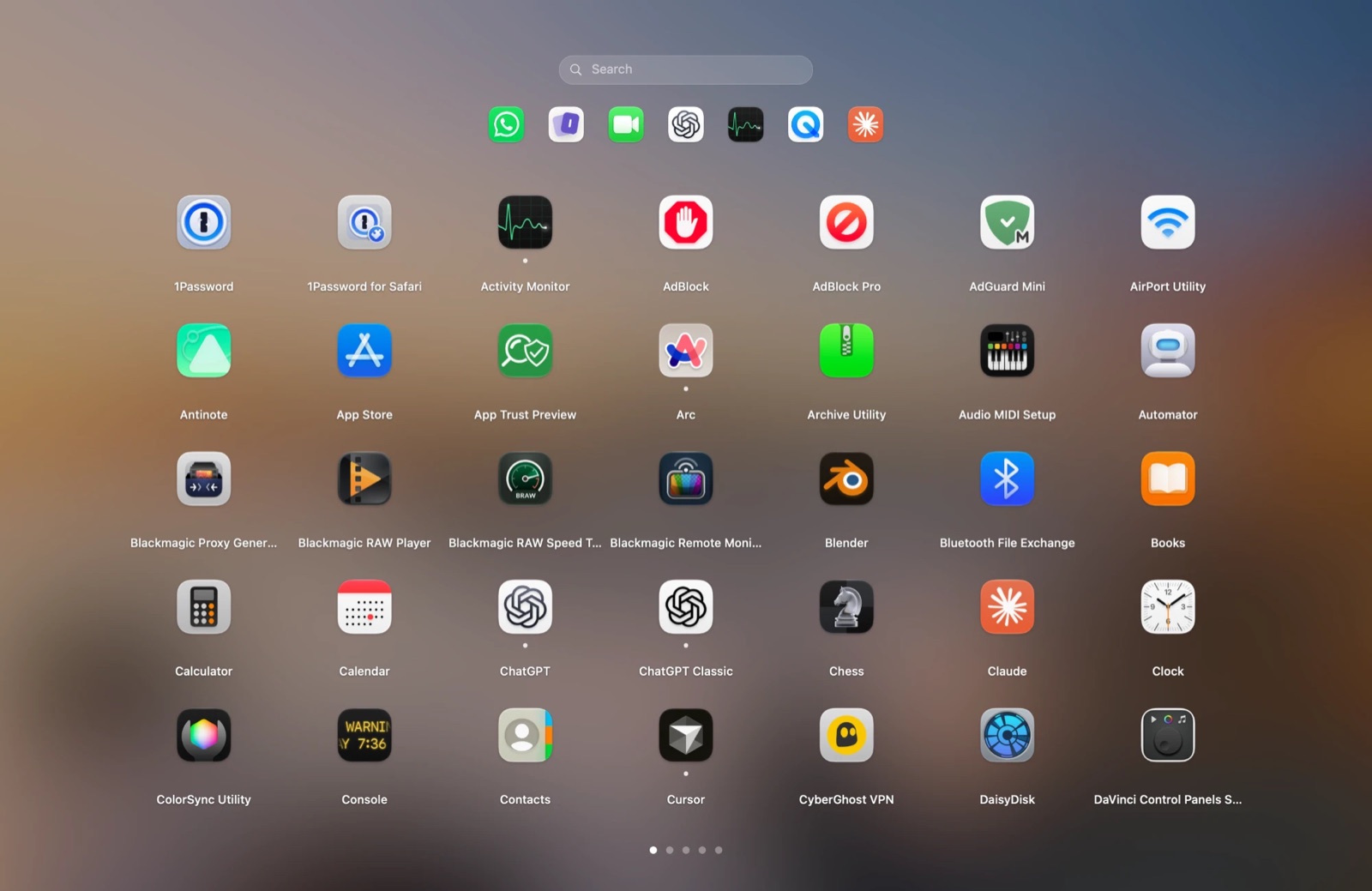
Apple removed Launchpad in macOS 26 Tahoe. If you want it back, the quickest route in 2026 is Vehla's Launchpad: the same full-screen grid of your apps over a softly blurred desktop, with pages, folders and search, opened by pressing the left ⌘ key twice. It runs on macOS 26 and macOS 27 on Apple Silicon and is part of Vehla Pro.
This page covers what Apple replaced Launchpad with, why the early Terminal workaround stopped working, what Vehla's version does and doesn't do, and how to set it up in under a minute. Facts were checked in October 2026.
What happened to Launchpad in macOS 26?
macOS 26 Tahoe dropped Launchpad. The Apps icon in the Dock now opens a view inside Spotlight: a list of your apps with category filters that closes the moment you click away. There is no full-screen grid over your wallpaper, no pages, and no folders of your own.
During the Tahoe betas a Terminal command brought the old Launchpad back. Apple then removed Launchpad's files from the release, and on shipping versions of macOS 26 the command does nothing useful; Macworld reports it can break Spotlight's app view instead. The remaining hacks need System Integrity Protection switched off, which is not worth it for an app grid. macOS 27 keeps the Spotlight view, so a replacement is the only way to have the grid back.
What Vehla's Launchpad looks like
It is deliberately the Launchpad you remember, rebuilt as a Vehla feature rather than a system hack. It is based on Grid Launcher, an open-source project by Michael Wiseman, with Vehla's additions on top.
- The grid. Seven columns by five rows per page on a typical display, drawn over your desktop picture with the familiar blur. Icon size follows the display, so it looks right on a MacBook screen and on a Studio Display.
- Pages. Swipe with two fingers or click the page dots. While you drag an app, holding it at the screen edge turns the page for you.
- Search. Start typing and the grid filters as you go. Arrow keys move the selection and Return opens the app.
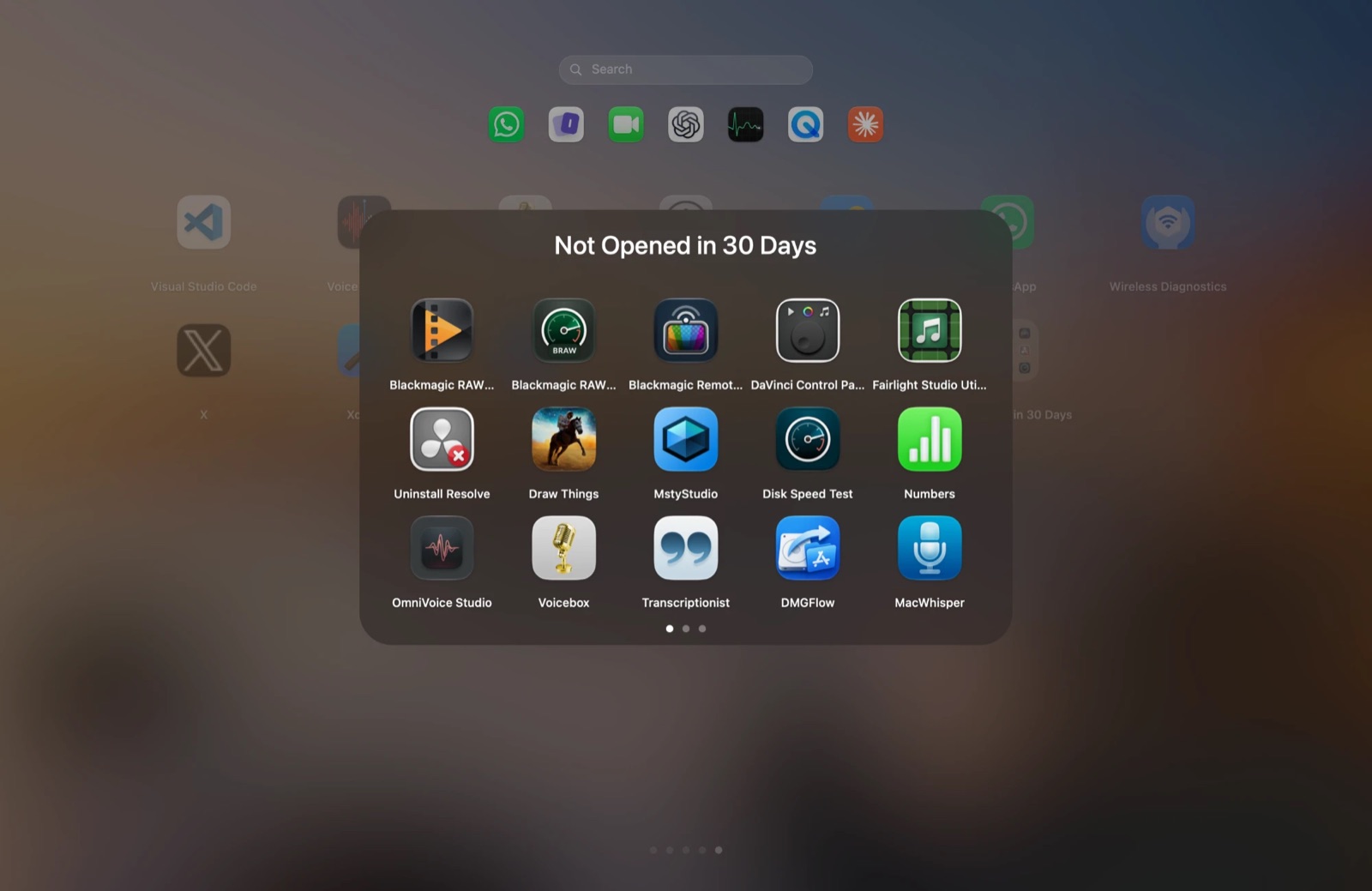
- Folders. Drop one icon on another. New folders are named after the apps' App Store category (Developer Tools, Utilities, Music) and can be renamed. A folder with more than nine apps gets a larger card with pages of its own.
- Recent apps. A row of the apps you opened most recently sits under the search field, so the ones you actually use are one click away.
- Running apps. A dot marks apps that are open, and Dock badges (unread counts, downloads) show on icons and folders.
- Right-click. Open, Show in Finder, Hide from Launchpad, or Move to Trash for any app outside the system folder. A running app is asked to quit first.
- Smart folders. Recently Added collects apps installed in the last 30 days and is on by default. Not Opened in 30 Days is optional and makes a tidy-up list of apps you have stopped using.
- Drag out. Drag an app to the bottom edge of the screen to drop it into the Finder as an alias, or onto Doki, Vehla's own Dock.
- Edit mode. Hold an icon, or press Option, to rearrange and remove, as before.
- Sync. With iCloud Sync on, the layout and the hidden-apps list follow you to your other Mac.
Four ways to open it
- Press the left ⌘ key twice. On by default. Shortcuts that use ⌘, such as ⌘C, never count, and a press with a click or another key in between is ignored.
- A keyboard shortcut. Record one for Open / Close Launchpad in Settings › Hotkeys. There is no default, so it never collides with anything.
- A hot corner. Pick a corner in Settings › Launchpad. It fires only in a real outer corner of your displays, not where two screens meet.
- A Hyperkey or Glide action, or Doki. Launchpad is an action you can put on any Hyperkey combination or trackpad gesture, and Doki shows a Launchpad tile next to Finder while it is on.
How to set it up
- Download Vehla and open it. It needs macOS 15 or later on an Apple Silicon Mac.
- Open Settings › Launchpad and turn on Enable Launchpad. Launchpad is a Vehla Pro feature; every install can start a 7-day Pro trial without a card.
- Press the left ⌘ key twice. Your apps appear in alphabetical order, as the original did on a fresh Mac; drag them into the order and folders you want.
- Optional: choose a hot corner, switch the recent apps row or the smart folders on or off, and review the Hidden Apps list, where anything you hid can be shown again.
Vehla's Launchpad, Apple's Apps view and the old Launchpad
| Feature | Launchpad (macOS 15 and earlier) | Apps in Spotlight (macOS 26 and 27) | Vehla Launchpad |
|---|---|---|---|
| Full-screen grid over the wallpaper | Yes | No, a Spotlight panel | Yes |
| Pages | Yes | No | Yes |
| Folders you make yourself | Yes | No, category filters only | Yes, auto-named by category |
| Search by typing | Yes | Yes | Yes |
| Open with a key, gesture or hot corner | F4, pinch, hot corner | Dock click, Spotlight | Left ⌘ twice, shortcut, hot corner, Hyperkey, Glide, Doki |
| Hide apps from the grid | No | No | Yes |
| Recent apps row and smart folders | No | No | Yes |
| Delete apps | App Store apps only | No | Any app outside the system folder |
| Price | Built in (removed) | Built in | Vehla Pro, $29.99 once for two Macs |
Other ways to get an app grid back
Apps in Spotlight. Free and already there. If you only ever typed an app's name into Launchpad, this does the same job, and it is worth trying first.
The Applications folder in the Dock. Drag it to the right side of the Dock and set it to show as a grid. Free, one click, no pages, no search, no folders.
Single-purpose Launchpad clones. Several small utilities appeared after Tahoe shipped, usually for a few dollars. They do one thing. Vehla's Launchpad is for people who also want the rest of Vehla: the command palette, clipboard history, window management, dictation and on-device AI, which is why it is one app rather than fourteen.
What it doesn't do
- It is part of Vehla Pro, not Vehla Free. The trial lasts 7 days and Pro is a one-time $29.99 for two Macs; see pricing.
- It cannot import your old Launchpad layout. Apple deleted that data with the feature, so the grid starts alphabetically and you arrange it once.
- It needs an Apple Silicon Mac on macOS 15 or later. Intel Macs are not supported.
- It arrived in Vehla 9.0. Earlier versions do not have the Settings › Launchpad page.
Frequently asked questions
Is Launchpad gone for good in macOS 26?
Yes. Apple replaced it with an Apps view inside Spotlight in macOS 26 Tahoe, and macOS 27 keeps that design. The original Launchpad code is no longer in the system.
Does the Terminal trick to restore Launchpad still work?
No. It only worked in early Tahoe betas. On released versions of macOS 26 it does nothing useful and can break the Spotlight Apps view. Methods that disable System Integrity Protection are not recommended.
Does Vehla's Launchpad work on macOS 27?
Yes. It runs on macOS 15 and later on Apple Silicon, including macOS 26 Tahoe and macOS 27.
Is Vehla's Launchpad free?
It is a Vehla Pro feature. Vehla Free is free forever, every install can start a 7-day Pro trial without a card, and Pro is a one-time $29.99 for two Macs with free updates for life.
How do I open Vehla's Launchpad?
Press the left ⌘ key twice, record a shortcut in Settings › Hotkeys, choose a hot corner in Settings › Launchpad, assign it to a Hyperkey or Glide action, or click its tile in Doki.
Can I hide or delete apps from the grid?
Yes. Right-click an app and choose Hide from Launchpad; it still opens from Finder, Spotlight and Vehla's palette, and Settings › Launchpad › Hidden Apps shows it again. Move to Trash removes any app outside the system folder, asking a running app to quit first.
Does the layout sync between Macs?
With Vehla's iCloud Sync turned on, the grid layout and the hidden-apps list sync to your other Macs. Apps that aren't installed on the other Mac simply don't appear there.
Get the grid back
If Launchpad was part of how you used your Mac, you don't have to relearn Spotlight. Download Vehla, turn on Launchpad in Settings, and press the left ⌘ key twice.