Vehla started as a launcher for the Mac. Vehla for Windows is now in free beta. It is a port rebuilt natively in WinUI 3, with separate x64 and ARM64 builds, not the Mac app wrapped in Electron. Press Alt + Space, type, and press Enter. Download it from the Vehla for Windows page.
This post covers what is in the beta, how the Mac-style shortcuts work, how to get past the install warning, and what feedback would help most.
What is in the beta
Everything opens from one palette. Type what you want and press Enter; Ctrl + K shows every action for the selected result, and Ctrl + / opens the full command reference.
- Launcher. Apps, files and folders with fuzzy search, plus favorites and recents.
- Clipboard history. Text, links and images, searchable and ready to paste again. Type
clip, or narrow it withclip imagesorclip links. Pin the ones you reuse. - Calculator and conversions. Math, units, colors and time zones as you type:
5m to km,1pm est to cst,#ff8800. - Notes, Kanban and Canvas. Quick notes, boards, and an Excalidraw whiteboard inside the palette.
todo buy milkadds a card. - Snippets. Type
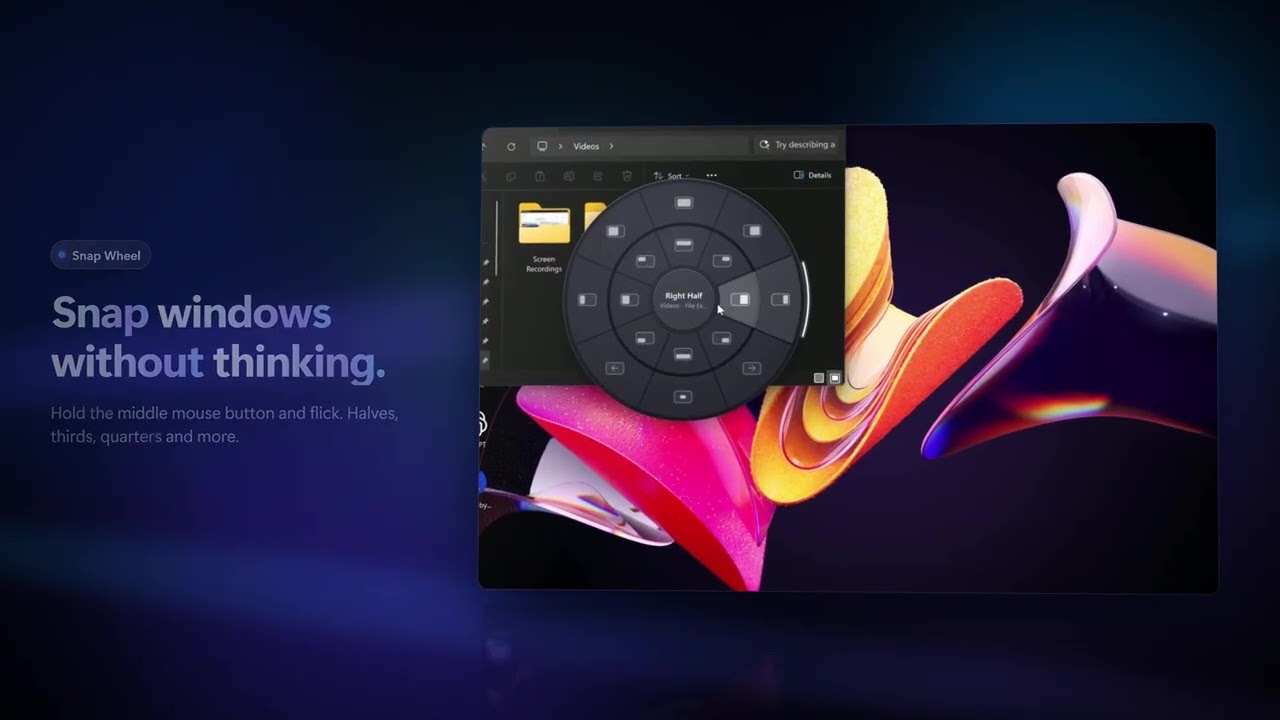
/to browse them, or set a trigger such as;datethat expands in any app. - Window management. Hold the middle mouse button and flick to place a window with the Snap Wheel.
save layout workstores where everything is, andlayout workbrings the whole setup back, opening the apps that are missing. - Shelf. Shake the pointer while dragging files to park them on a tray at the edge of the screen, then drag them out anywhere later.
- Text Sniper. Alt + Shift + T copies text from anything on screen, even images.
- Island and break reminders. A slim pill at the top of the screen for now playing, timers and quick controls, plus a gentle nudge to step away from the screen.
- Timers and system commands.
timer 10m tea,pomodoro,volume 40,keep awake 2h.
A welcome tour walks through the main features the first time you open Vehla, and lets you switch each one on or off. Type onboarding in the palette to run it again.
AI on any text, with your key or fully local
Select text in any app and press Alt + Shift + Space to run an AI action on it, or Alt + Shift + R to rewrite it where it is. You can also ask a question straight from the palette, and write your own actions in Settings › AI and run them by keyword.
There is no Vehla account and no Vehla server in the middle. You choose the model:
- Your own key: OpenAI, Claude, Gemini, DeepSeek or OpenRouter. Requests go from your PC to that provider.
- Fully local: Ollama or LM Studio, which run models on your PC with no key. Nothing leaves the machine.
One difference from the Mac: Vehla for Mac includes its own on-device model runtime, which is built for Apple Silicon. On Windows, local models run through Ollama or LM Studio instead.
Coming from a Mac: Alt works like ⌘
If your hands know Mac shortcuts, turn on Alt for common Ctrl shortcuts in Settings. Each Alt shortcut then acts like its Ctrl version, and Ctrl keeps working too.
| Press | To |
|---|---|
| Alt + C, Alt + V, Alt + Z | Copy, paste, undo |
| Alt + Shift + Z | Redo |
| Alt + T, Alt + W | New tab, close tab |
| Alt + L, Alt + R | Address bar, reload |
| Alt + F, Alt + S, Alt + O | Find, save, open |
| Alt + B, Alt + I, Alt + K | Bold, italic, link |
| Alt + 1 to Alt + 9 | Switch tab |
| Alt + Q | Quit the app in front |
Installing: Windows will warn you
The beta is not code-signed yet. Signing is a paid certificate that tells Windows who published an app; without it, Windows and your browser do not recognize the installer and show warnings. Signed builds are planned before the public launch. Until then:
- Keep the download. If Edge says the file "isn't commonly downloaded", choose Keep, then Show more › Keep anyway. In Chrome, click Keep in the downloads list.
- Run anyway. When "Windows protected your PC" appears, click More info, check that the app is Vehla-Setup, then click Run anyway.
- Finish setup. It takes a few seconds and does not ask for an administrator password. Vehla installs for your Windows account only and lives in the system tray.
On some Windows 11 PCs, Smart App Control blocks unsigned apps with no Run anyway button. If that is your PC, wait for the signed build rather than turning Smart App Control off. If you want to check a download, every installer's SHA-256 is published in Vehla's update file, and the release notes on GitHub show how to compare it.
It needs Windows 10 version 2004 or newer, or Windows 11. Most PCs with Intel or AMD processors take the x64 installer; Snapdragon and other ARM PCs, such as Copilot+ PCs, take ARM64. After that Vehla updates itself: it checks shortly after it starts and every few hours, and offers Restart to Update when a new beta is ready.
What stays on your PC
- Clipboard history, notes, snippets, boards and the file index are stored only on your PC, in
%LOCALAPPDATA%\Vehla. - API keys are encrypted with your Windows account and only go to the provider you chose.
- Vehla for Windows has no analytics, telemetry or ads. It contacts Amazon S3 and GitHub to check for and download updates.
What would help from testers
This is a beta, so things may break, and feedback decides what ships next. Four questions in particular:
- Does it find all your apps and files? Is anything missing?
- How fast does search feel next to what you use now, such as PowerToys Run or Flow Launcher?
- If you have used a Mac, do the Alt shortcuts feel natural?
- What is the one thing you would want it to do that it does not?
Report bugs in GitHub Issues with your Vehla version from Settings › About, your Windows version, and whether your PC is x64 or ARM64. Ideas and questions are welcome on Discord.
Frequently asked questions
Is Vehla for Windows free?
Yes. It is free during the beta.
Is it an Electron app?
No. It is a native Windows app built with WinUI 3, with separate x64 and ARM64 builds.
Why does Windows warn me when I install it?
The beta is not code-signed yet, so Microsoft Defender SmartScreen shows "Windows protected your PC". Click More info, then Run anyway. Signed builds are planned before the public launch.
Which Windows versions does it run on?
Windows 10 version 2004 or newer and Windows 11, on x64 and ARM64 PCs. It installs per user, so it needs no administrator rights.
Do I need an API key for the AI features?
Only for cloud models. Vehla works with your own OpenAI, Claude, Gemini, DeepSeek or OpenRouter key, or with Ollama and LM Studio, which run models on your PC with no key.
Does it have everything the Mac app has?
Not yet. The beta covers the launcher, clipboard history, calculator, notes, Kanban, Canvas, snippets, window tools, the Shelf, the Island, Text Sniper and AI actions. Vehla for Mac has more.
How do I uninstall it?
Open Settings › Apps › Installed apps, find Vehla and choose Uninstall. Your data stays in %LOCALAPPDATA%\Vehla until you delete that folder.
Get the beta
Download the installer for your PC from vehla.app/windows, press Alt + Space, and tell me what is missing.